To access Webmail go to your Site Tools > Email > Accounts and click the kebab menu > Log in to Webmail button next to the preferred email account.
Back up emails in Webmail
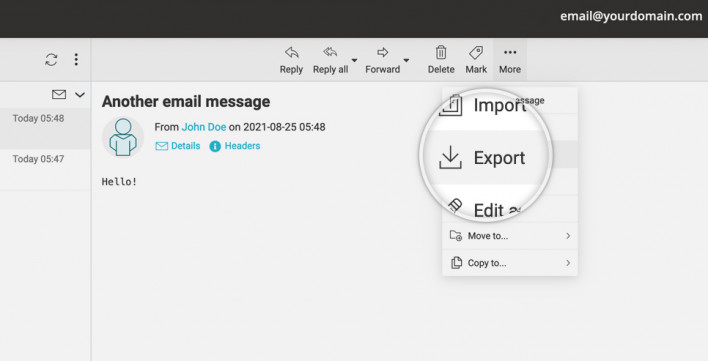
Once logged in Webmail, find the desired message that you want to back up and left click on it. Then click the More -> Export button. This will produce a prompt in your browser to download the message in an .eml format, which can later be used to restore that message.
Restore emails in Webmail
Once you have logged in Webmail of the particular email account, to restore messages click the More -> Import button.
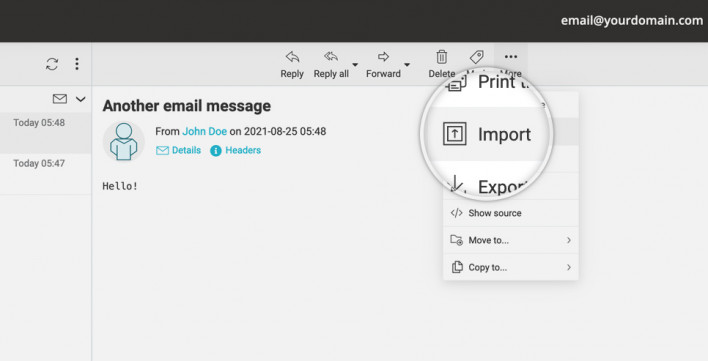
A popup window will appear where you can upload a single or multiple messages in MIME or Mbox format.
Use the Browse button to navigate to the location of your email messages backup on your computer and then click Import to initiate the restore.
Was this article helpful?
That’s Great!
Thank you for your feedback
Sorry! We couldn't be helpful
Thank you for your feedback
Feedback sent
We appreciate your effort and will try to fix the article