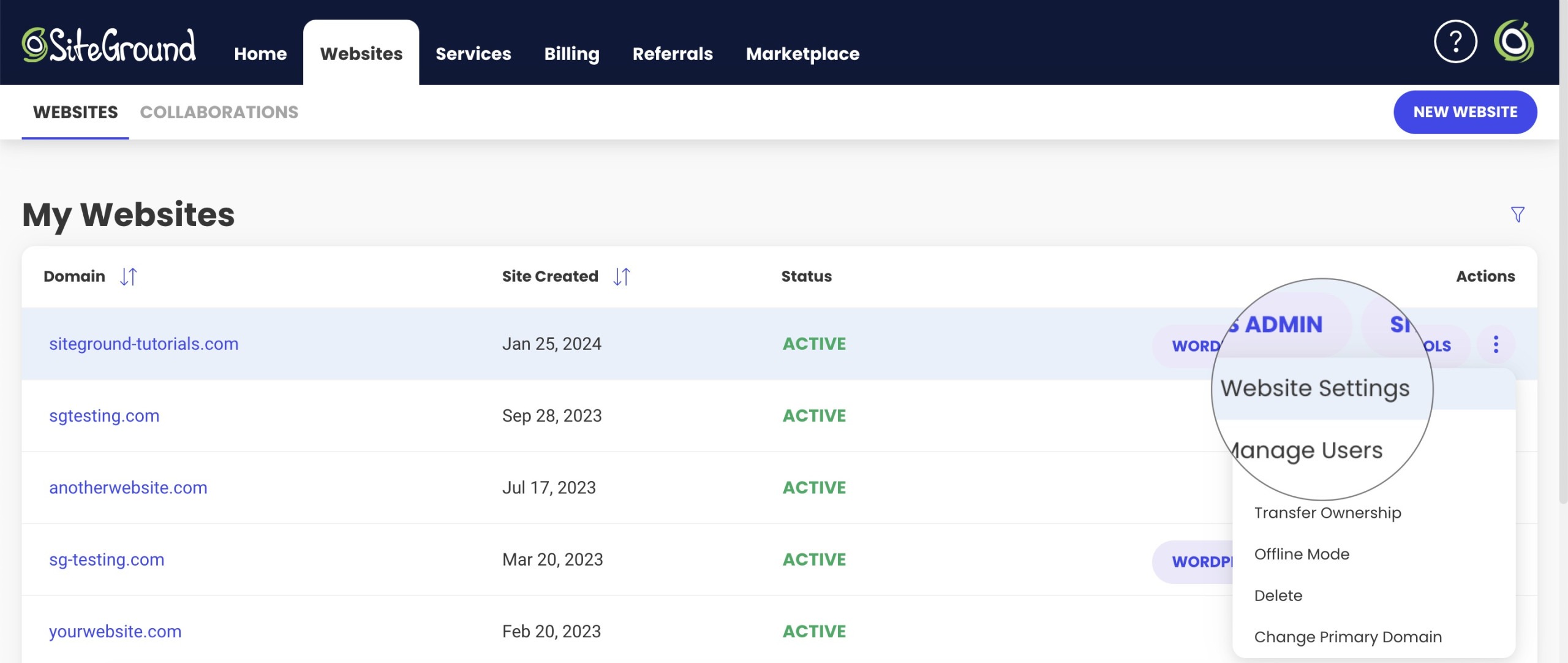
To find the IP address and the Name Servers assigned to a website, go to your Client Area > Websites. From the list of your websites, locate the one you want to check and click the kebab menu next to it and click Website Settings.
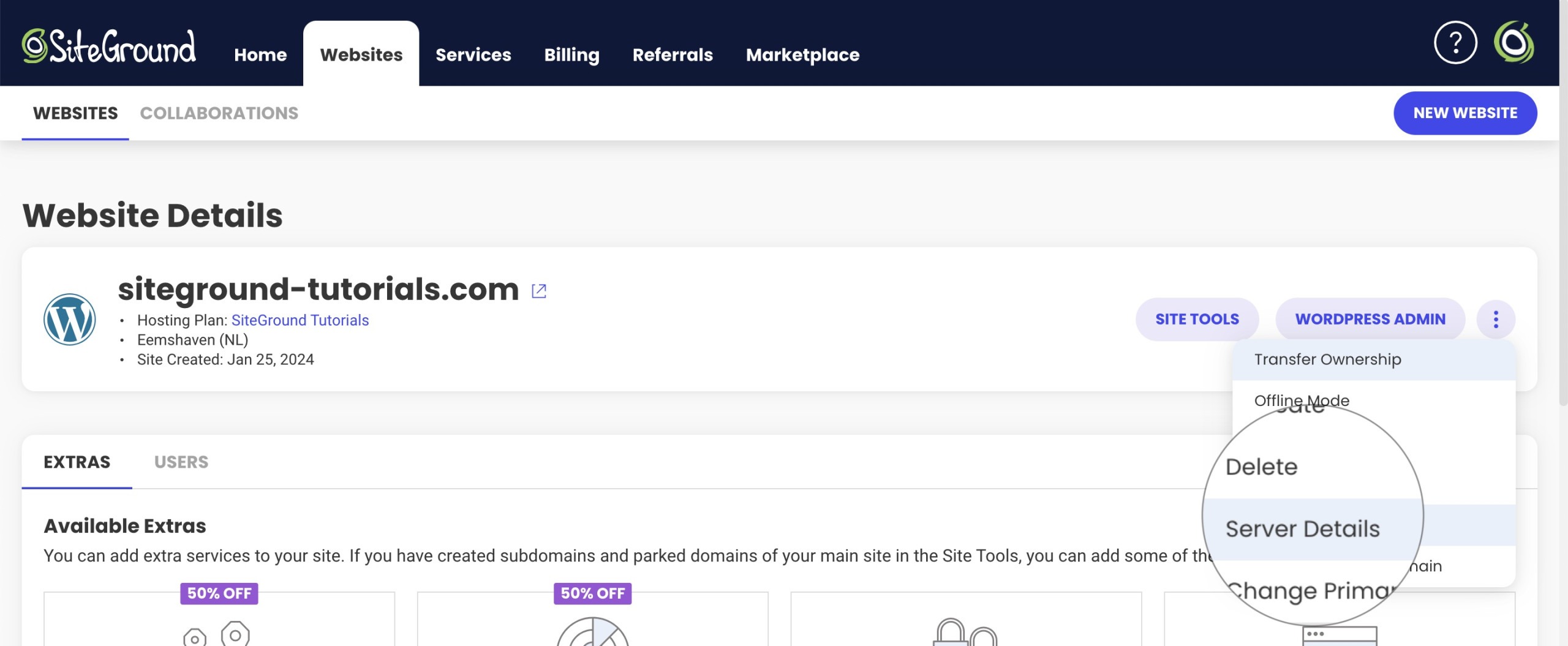
Then click on the kebab menu and select “Server Details”.
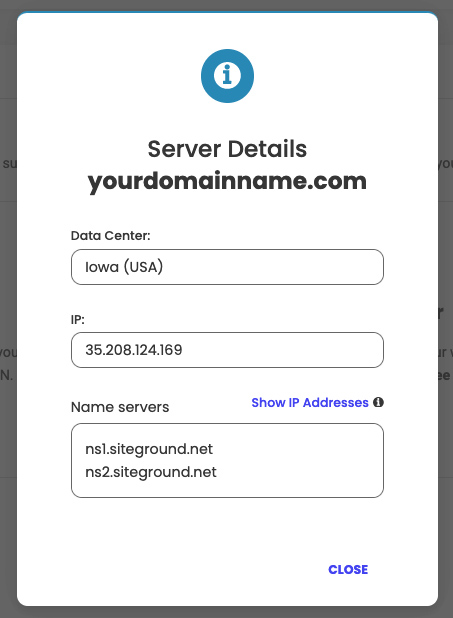
The light-box, which will appear on the screen, will show the IP address of the website, and its Name Servers (NS 1 and NS 2).
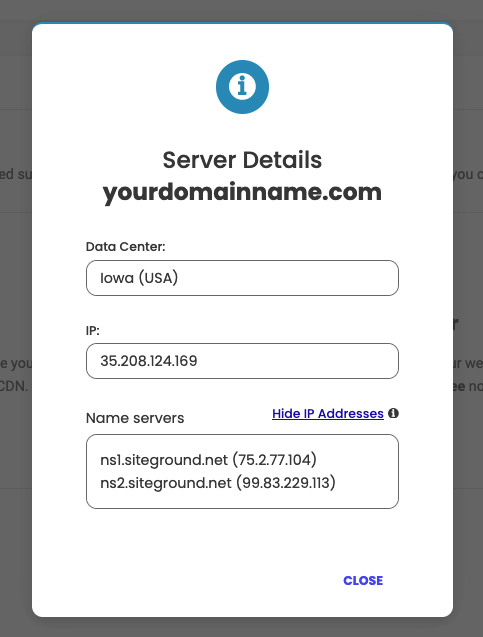
If you need IPs of the nameservers, you click the Show IP Addresses button:
ns1.siteground.net (75.2.77.104)
ns2.siteground.net (99.83.229.113)
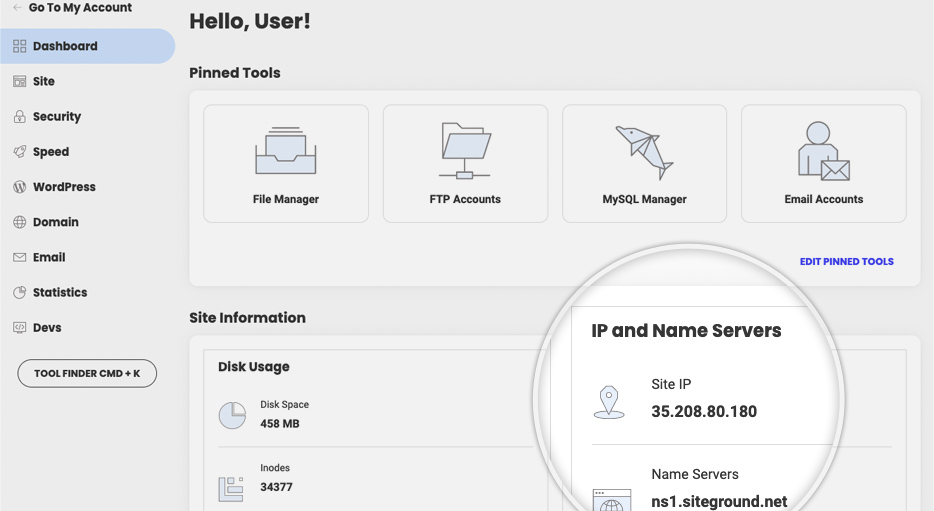
Alternatively, you can also see this information in the Dashboard of your Site Tools > Site Information section.
Was this article helpful?
That’s Great!
Thank you for your feedback
Sorry! We couldn't be helpful
Thank you for your feedback
Feedback sent
We appreciate your effort and will try to fix the article